

Before you begin
- Import the source video and check its current orientation.
- Choose the frame you need for the intended destination; check that service's current requirements.
- Identify the subject or important text that must stay visible throughout the clip.
Step by step
Open the frame tool
Preview the imported video, then choose the frame/crop tool in the editor. Decide whether you need a tighter composition or a different aspect ratio.
Set a vertical composition
Choose the 9:16 canvas in the frame controls. Fit keeps the picture within the canvas and can leave borders; Fill covers the canvas and crops picture edges. Adjust the retained region as needed, then tap Apply.
Correct the orientation if needed
Use rotation when the image is sideways or needs a different orientation, then tap Apply. Recheck the framing after rotating because the useful composition may have changed.
Review and export
Play through the clip, checking the subject at the beginning, middle and end. Export the result, then inspect the final video's orientation and visible edges.
Check the result
Check movement, not only the first frame
A person or object can leave a crop later in the video. Watch the whole retained interval and choose a framing that still works when the subject moves.
Cropping cannot restore missing detail
A narrow crop keeps fewer source pixels. Choose a composition that works with the available footage rather than assuming cropping will improve its detail.
Checked on an Android phone
These screenshots show the saved trim, framing, text, mask and mute settings reopened in each interface language. No changes were applied again while taking the screenshots.
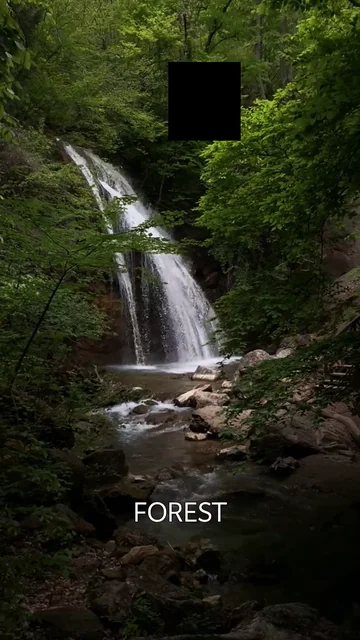
One actual MP4 export from the same project is shared across all 12 language pages. We checked its 9-second duration, portrait display, lack of an audio track, manual FOREST text and fixed black mask.
- 9 seconds, 9:16 portrait, 1080 × 1920 display, no audio track.
- FOREST is manually entered static text, rather than automatically generated subtitles.
- The solid-black mask stays in a fixed area; it does not follow moving subjects.
- One export from one Android phone is shared across 12 language pages; these are not 12 separate exports.
What we checked · Android · 0.1.3 (11)
Source video: Waterfall in Forest by VeraSilkina on Pexels.
- These checks cover one Android phone and one video. Other devices, formats and iOS were not tested here.
- The saved settings are an example, not a preset automatically used for every video.
- This example does not verify mosaic, automatic subtitles, subject tracking or publishing in other apps.
What to know
- Cropping removes picture area; it does not extend the scene or generate a missing background.
- Rotation and frame adjustments are manual. Do not assume automatic subject tracking or automatic adaptation to every social app.
Questions and answers
Is a 9:16 crop the same as trimming?
No. A 9:16 crop changes the visible frame. Trimming changes the beginning and ending time of the clip.
Can I rotate a sideways video?
Yes, with Plus access or an active trial. Check the picture's orientation and framing again before exporting.
Will cropping make a blurry source sharper?
No. Cropping selects part of the existing picture. It does not reconstruct detail or promise a resolution improvement.