

Before you begin
- Import a video from your gallery, files or a supported public link.
- Decide which beginning and ending you want to keep.
- Listen to the original audio before deciding whether the exported clip should be silent.
Step by step
Preview and plan the cuts
Open the video in the editor. Identify sections to keep; use trimming for a single start and end, or Segments for cuts inside the video.
Split and remove unwanted sections
In Segments, select a segment and move the playhead inside it. Tap Split at playhead, repeat as needed, then select an unwanted segment and tap Delete selected segment. Wait for preview confirmation and tap Apply before playback or export.
Choose whether to mute
Use the mute tool to remove source sound, then tap Apply. Listen to the retained sequence and check the joins before exporting.
Save and export in order
Save the project to continue editing later. Export creates a separate result containing the kept segments in order. Play the exported video and check its picture, joins and sound; the original remains unchanged.
Check the result
Leave enough context
A cut that is too tight can remove the start of a gesture or the end of a sentence. Check the first and last moments of the retained interval in motion.
Check silence in the exported file
A muted preview alone is not a reason to assume the final file is silent. Play the export and verify the result you are about to share.
Checked on an Android phone
These screenshots show the saved trim, framing, text, mask and mute settings reopened in each interface language. No changes were applied again while taking the screenshots.
One actual MP4 export from the same project is shared across all 12 language pages. We checked its 9-second duration, portrait display, lack of an audio track, manual FOREST text and fixed black mask.
- 9 seconds, 9:16 portrait, 1080 × 1920 display, no audio track.
- FOREST is manually entered static text, rather than automatically generated subtitles.
- The solid-black mask stays in a fixed area; it does not follow moving subjects.
- One export from one Android phone is shared across 12 language pages; these are not 12 separate exports.
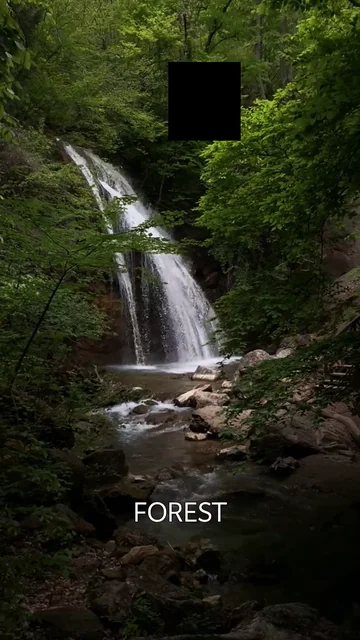
What we checked · Android · 0.1.3 (11)
Source video: Waterfall in Forest by VeraSilkina on Pexels.
- These checks cover one Android phone and one video. Other devices, formats and iOS were not tested here.
- The saved settings are an example, not a preset automatically used for every video.
- This example does not verify mosaic, automatic subtitles, subject tracking or publishing in other apps.
What to know
- Keep at least one segment; a project supports at most 64 segments. Split inside a selected segment, not on its boundary. This workflow splits one source video, not a collection of unrelated source files.
- Muting removes source audio; it does not replace music or mix tracks. Splitting does not automatically select highlights or reorder the kept segments.
Questions and answers
Are splitting and deleting segments Free?
Yes. They use the Free trimming entitlement, as do trimming and muting. Text colors, crop and fixed masks still require Plus or a valid trial.
How do I remove a section in the middle?
Split before and after it, select that segment and choose Delete selected segment. Apply the previewed edit; the remaining segments close up in their existing order.
Does deleting a segment overwrite the original?
No. It changes the editing project. Save that project separately and export the kept sequence to a new video; the original is preserved.